TabletPen
Turn your Android tablet into a wireless Bluetooth drawing tablet
User Guide
Input Modes
TabletPen has two input modes, selectable in Settings > Pen > Mode:
Digitizer Mode (Default)
Your pen position maps directly to your computer screen — like a Wacom tablet. Touch the top-left of your tablet, the cursor goes to the top-left of your screen.
- Best for: Drawing, painting, photo editing
- Pen pressure and tilt are sent to your computer
- The drawing area on your tablet matches your screen’s aspect ratio
Mouse Mode
Your pen moves the cursor relatively — like a trackpad. Drag your pen to move the cursor in that direction.
- Best for: General navigation, presentations, browsing
- One-finger drag moves the cursor
- Adjust speed in Settings > Trackpad > Mouse Speed
Pen Input
- Draw: Touch the pen to the tablet surface. Pressure and tilt are sent to your computer.
- Hover: Move the pen above the surface to position the cursor without clicking.
- Eraser: Flip the pen (if your stylus has an eraser end) to use the eraser tool.
- Barrel button: Press the button on your stylus for a right-click.
Touch / Trackpad Gestures
Your fingers work as a trackpad:
| Gesture | Action |
|---|---|
| One finger tap | Left click |
| One finger drag | Move cursor (mouse mode) |
| Two finger drag | Scroll |
| Two finger pinch | Zoom (Ctrl+scroll) |
| Double-tap and drag | Click-and-drag (like macOS trackpad) |
Double-tap-and-drag can be enabled in Settings > Trackpad > Double-tap-and-drag.
Device Selector
The device selector in the top-left shows your paired computers.
- Filled dot — Connected and active (HID input flowing)
- Hollow dot — Bluetooth connected, available for quick switch
- No dot, dimmed text — Paired but not reachable (out of range or powered off)
- + Pair new device — Enter pairing mode to add a new computer
Tap the selector to switch between computers. The dropdown shows the connection status of each device.
Settings
Open settings by tapping the gear icon in the toolbar.
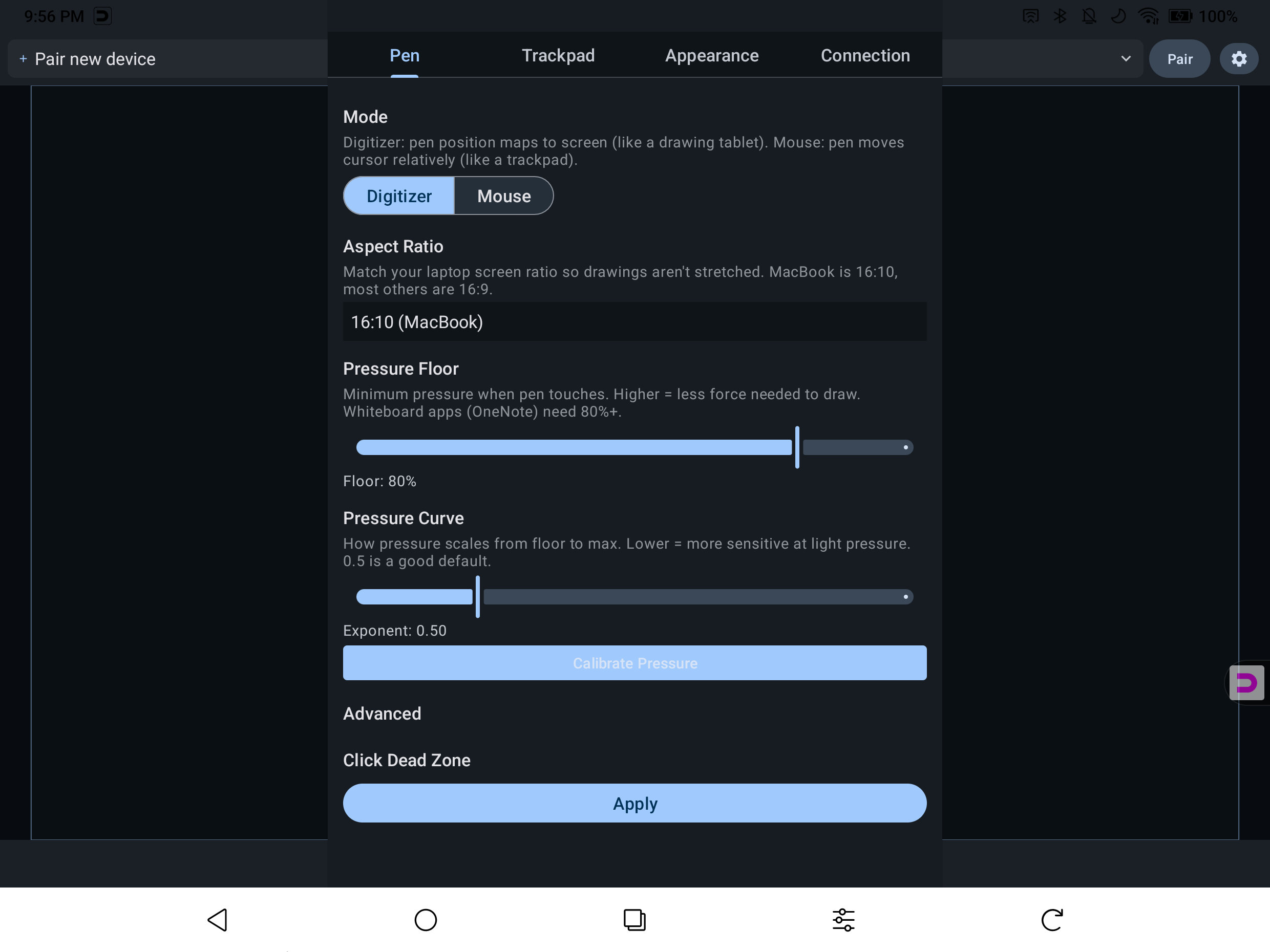
Pen Tab
| Setting | Description |
|---|---|
| Mode | Digitizer (absolute positioning) or Mouse (relative movement) |
| Aspect Ratio | Match your laptop screen: 16:10 for MacBook, 16:9 for most Windows laptops |
| Pressure Floor | Minimum pressure when pen touches. Raise this if your app needs more force to start a stroke. Whiteboard apps like OneNote need 80%+ |
| Pressure Curve | How pressure scales from light to heavy. Lower = more sensitive at light pressure. 0.5 is a good default |
| Calibrate Pressure | Run a 3-step wizard to auto-tune pressure floor and curve for your pen |
Trackpad Tab
| Setting | Description |
|---|---|
| Mouse Speed | Cursor movement speed for one-finger drag |
| Scroll Speed | Scrolling speed for two-finger drag |
| Pinch Zoom | Zoom sensitivity for pinch gestures |
| Double-tap-and-drag | Enable tap-tap-hold-drag for click-and-drag |
Appearance Tab
| Setting | Description |
|---|---|
| Theme | System, Light, or Dark |
| Language | System, English, Japanese, Korean, Simplified Chinese, Traditional Chinese |
| Orientation | Auto, Portrait, or Landscape |
| Rotation | 0/90/180/270 degrees — for mounted or flipped tablets |
| Cursor Style | None, Crosshair, Dot, or Circle shown on the tablet canvas |
| Show pen strokes | Toggle pen trail on the tablet canvas (visual feedback only — your computer always receives input) |
| Stroke Color | Auto, White, Black, Red, or Blue |
Connection Tab
Shows detailed connection status, transfer speed, and diagnostics. Use Copy Diagnostics when reporting issues.
About Tab
- App version
- Report Issue — send a bug report with device info and logs
- Show Tutorial — re-run the setup tutorial
- Upgrade to Pro (Lite only)